 QwenImage21.net
Imagine from a prompt
Describe the subject, composition, light, and visual style. Turn a clear brief into a new image.
QwenImage21.net is an independent creative platform for Qwen Image 2.1. Explore image generation, reference-based editing and transparent assets in one workspace.
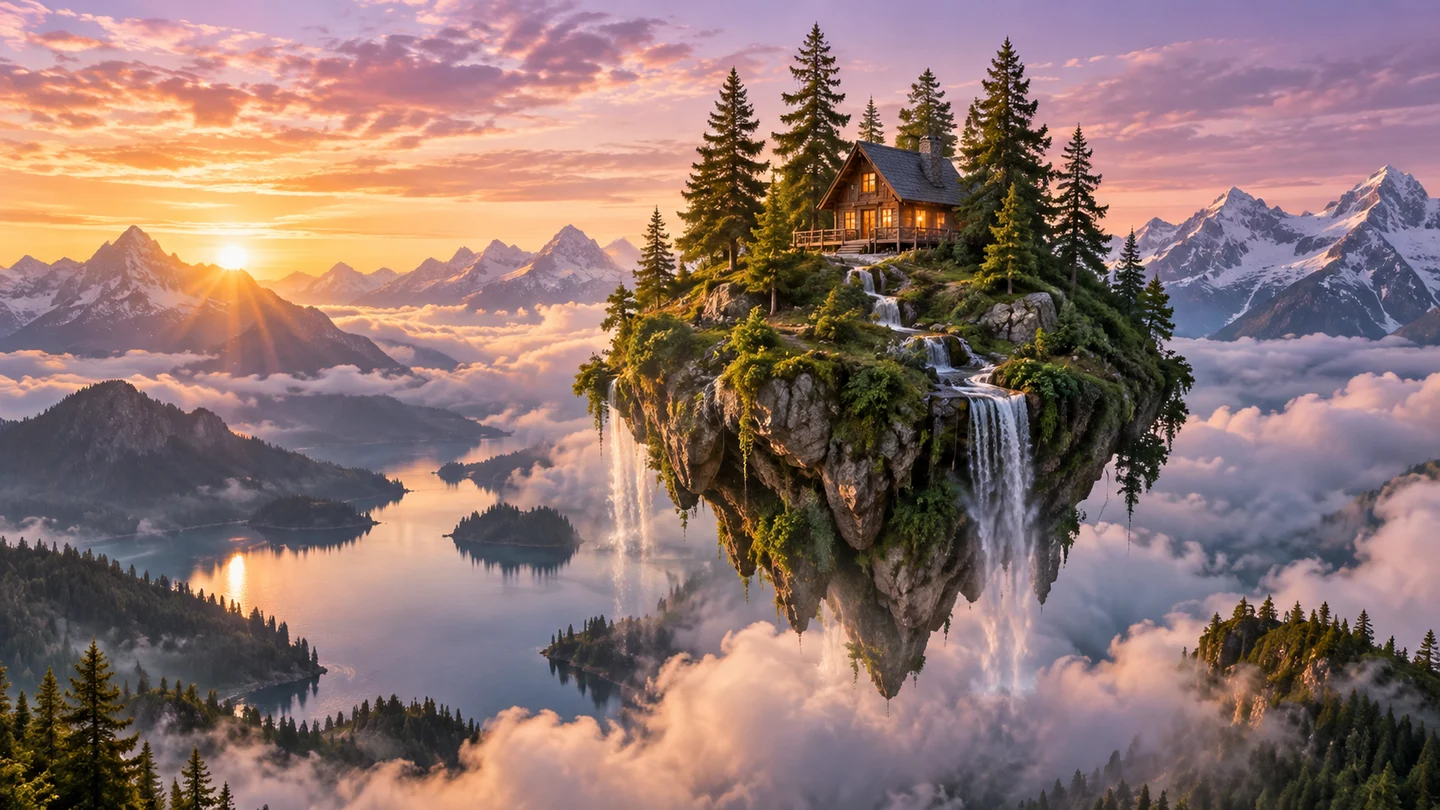 Creative inspiration · Illustrative artwork
Choose a creative starting point and make the prompt your own. Artwork is illustrative.
QwenImage21.net is an independent platform. Qwen Image 2.1 is developed by the Qwen team.
Qwen Image 2.1 brings text-to-image generation and image editing into one creative workflow. Start with a description, guide the result with reference images, and export at 1K or 2K resolution.
| Creative modes | Text to image · Image editing |
|---|---|
| Reference images | Up to 10 images |
| Resolution | 1K / 2K |
| Prompt length | Up to 5,000 characters |
| Output formats | PNG · WebP · JPEG |
| Transparent background | Available with PNG and WebP |
Build an image from scratch or give an existing idea a new direction.
Describe the subject, composition, light, and visual style. Turn a clear brief into a new image.
Bring up to 10 images into your brief to guide the objects, look, and visual direction.
Upload an image and explain what should change. Specify the details you want to keep.
Give your creative direction room to develop. Combine detailed prompts, visual references, and output controls in one workspace.
Create an imageWrite prompts up to 5,000 characters long.
Guide your result with up to 10 reference images.
Choose 1K or 2K, plus PNG, WebP, or JPEG.
A versatile starting point for marketing, design, and everyday ideas.
Explore product scenes, clean backgrounds, and fresh campaign compositions.
Describe your layout and quote the exact text you want in the image. Review generated lettering before publishing.
Try art directions, editorial illustrations, and moodboard ideas from a single brief.
Create isolated assets with transparent PNG or WebP backgrounds for your next composition.
Your next image starts with a few simple choices.
Start from text or switch to image editing.
Upload images when your idea needs visual guidance.
Explain the subject, scene, style, and desired changes.
Choose your aspect ratio, resolution, and file format.
Check the composition and fine details of your result.
Save the result or refine your brief for another version.
Start with your subject. Add the setting, composition, lighting, style, and any exact text. For edits, explain what changes and what stays.
A studio product photograph of a matte lavender skincare bottle on a pale stone pedestal. Soft morning light from the left, subtle shadow, warm ivory background. Centered composition with generous space above for a headline. Realistic materials, understated editorial styling, no added text.Bring your own idea to life
Use account credits to generate and edit images. Explore available plans and check the generation cost before you create.
A few things to know before you start creating.
Yes. Describe the image you want, choose your output settings, and generate. You can also upload reference images to guide your result.
Qwen Image 2.1 supports up to 10 reference images. Use relevant references and explain the role of each image in your prompt.
Yes, when you select PNG or WebP output. JPEG does not support an alpha channel, so choose a compatible format for transparent assets.
Choose 1K or 2K resolution. Images can be exported as PNG, WebP, or JPEG.
Be specific about the change and what should stay the same. Clear references and a focused instruction make your intent easier to follow. Always review the generated result.
Image generation uses account credits. Check the amount shown in the generator before submitting and review the available plans on the pricing page.